Let’s Talk About Speech (Recognition) on the Mac
Dr. Mac’s Rants & Raves
Episode #327
Nuance, developer of Dragon Professional Individual for Mac, announced that the product would be discontinued effective 10/22/2018 and will no longer be available for purchase. And, that technical support for the product would be discontinued in 90 days (US) and 180 days (most other countries).
Since Nuance was the only developer of high-quality voice recognition software for the Mac, this leaves us with no “professional” grade voice recognition options for the Mac.
Or does it?
I have found three possible options to “replace” Dragon Professional on the Mac.
The word “Replace” is in quotes for a reason: Only the most expensive and odious option offers the same (or better) features as the late Dragon Professional for Mac. The other two options are decent and free, but they don’t offer features like voice training or extensive customization.
That being said, the other two options have obvious advantages: They’re both free, they both work on most modern Macs, and they’re both better than no speech recognition at all.
Dragon Professional for Windows
The most expensive and odious option (IMHO) is the Windows version of Dragon Professional (from $300) running on your Mac under emulation like Parallels Desktop (from $63.99), VMWare Fusion Pro ($40), or Boot Camp (free with macOS).
As odious as I find this option, it is the only one that compares to the late Dragon Professional For Mac feature-wise.
macOS Dictation
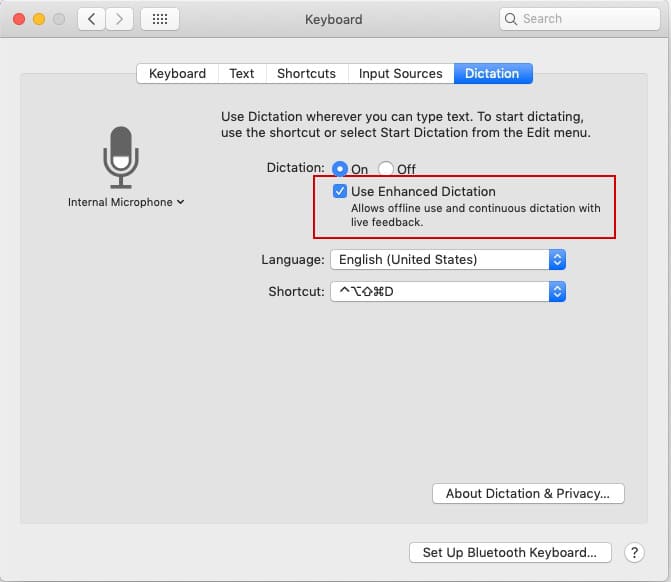
One of the free options is macOS Dictation, which you enable in the Keyboard System Preferences pane’s Dictation tab. This lets you dictate on your Mac in any document or field that can accept text input.
I recommend two tweaks that make Dictation more useful:
- Check the Use Enhanced Dictation checkbox on the Keyboard System Preferences pane’s Dictation tab. If you don’t, you’ll be unable to use Dictation without an Internet connection.
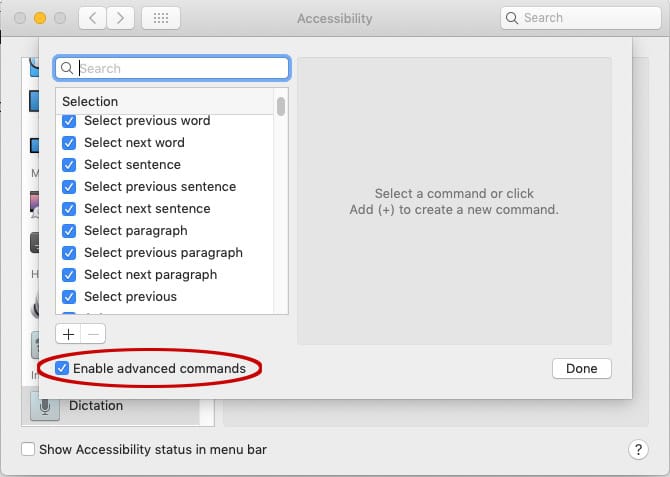
- In the Accessibility System Preferences pane’s Dictation tab, click the Dictation Commands button and then click Enable Advanced Commands. This will let you perform myriad actions with your voice including selecting text; moving the cursor to the beginning or end of a selection, sentence, paragraph, or document; formatting text; scrolling, and more. macOS Dictation is not as accurate or powerful as Dragon (Mac or Windows), but it’s a hell of a lot better than nothing.
Google Docs
You’ll find the second free option in Google Docs, where you can select Voice Typing from the Tools menu to dictate rather than type. But… you’ll only be able to select it if you are using Google’s Chrome web browser, since it isn’t available in Safari.
I haven’t used it much but it seems to work.
Transcription
For what it’s worth, I also looked at a few transcription apps and services, which convert recordings of your voice into text for a fee. While some of them translated voice to text well enough, they all charge by the word or page and require minutes (or hours) to complete translation.
Caveat emptor.
There is One Last Thing…
Every speech recognition program I’ve ever used worked better and was more accurate when I used almost any decent third-party microphone or wired headset.
0 Response to "Let’s Talk About Speech (Recognition) on the Mac"
Post a Comment