macOS: Finding the Hidden Advanced Display Preferences
Apple continues simplifying our System Preferences options in macOS, seemingly removing features we were accustomed to. One of those is the Detect Displays button, which appears missing from macOS Sierra 10.12. It turns out that option is still there, and many others, with a simple keystroke.

The Display Preferences in macOS have more options than you might realize (Image Credit: Unsplash)
Modifier Keys Are Nothing New to macOS
It’s not unusual for modifier keys to open up new options in OS X and macOS. That’s typically how Apple “hides” things the developers and engineers think non-power users shouldn’t have access to. We’ve learned quite a few of these hidden options, though.
Press the Option key before you click the Volume icon, and you can see both your output and input devices. Holding the same key before clicking the Wi-Fi icon gives you lots of details about your wireless network. And, of course, pressing the option key from Finder’s Go menu shows some hidden folders.
Using the Option Key in Display Preferences
There are a couple of things the Option key does in Display Preferences. For reference, here’s what Display Preferences looks like on my Mac Mini, before I press the Option key.
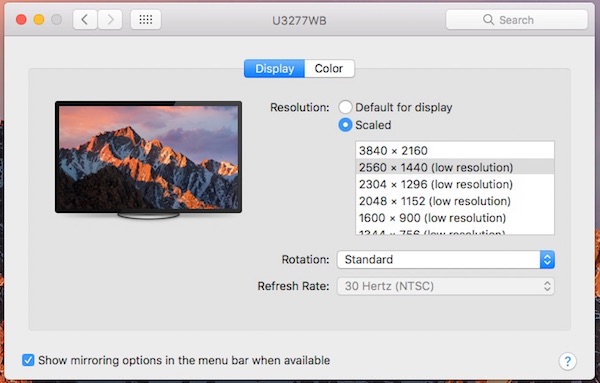
The default Display Preference options in macOS Sierra
If you press the Option with the Display Preferences window active, you’ll see the Detect Displays button show up. This is nice if your Mac has somehow “lost” one of your attached monitors or projectors, and I’m not really sure why Apple hid it this way.
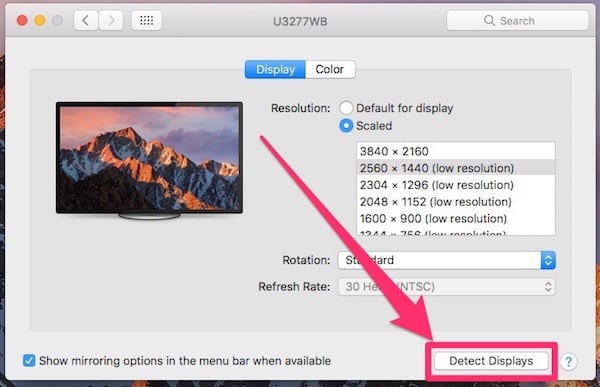
When you press Option, you’ll see the Detect Displays button appear
Another feature you can take advantage of lies in setting the resolution for your display. With the Scaled option selected, you’ll see quite a few native resolutions for your monitor and graphics chip. However, if you press the Option key as you click the Scaled radio button, you’ll see even more resolutions for you to pick from.
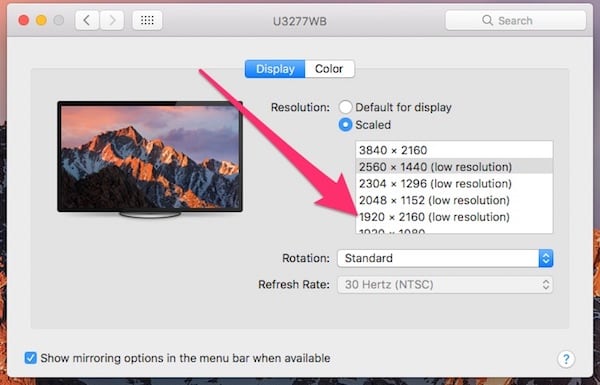
Additional resolutions, like 1920×2160, appear when I Option-Click Scaled
Good Options for Advanced Users
The Option key combination provides great choices for advanced users. This is as true in Display Preferences as anywhere else. Just be careful with the resolution choices, as some of them might not be native to your display or Mac. That means they might not work out for you, even though they’re listed.
0 Response to "macOS: Finding the Hidden Advanced Display Preferences"
Post a Comment