iOS 10: Get Started with iCloud Keychain
You have so many passwords for way too many websites. How do you keep track of them all on your iPhone or iPad? One way you can ease the pain of password management is by using iCloud Keychain to remember all of your Safari logins on all of your devices. Nancy Gravley explained how to enable and get started with the service for iOS 8, but iOS has changed a bit since then. Here’s how to enable the feature under iOS 10.

Keeping up with all of your passwords doesn’t have to be a pain, thanks to iCloud Keychain (Image Credit: Pexels)
Turn on iCloud Keychain in the Settings App
Like most configuration on iOS, you need to start in the Settings app. Once there, tap your name at the top of the screen.
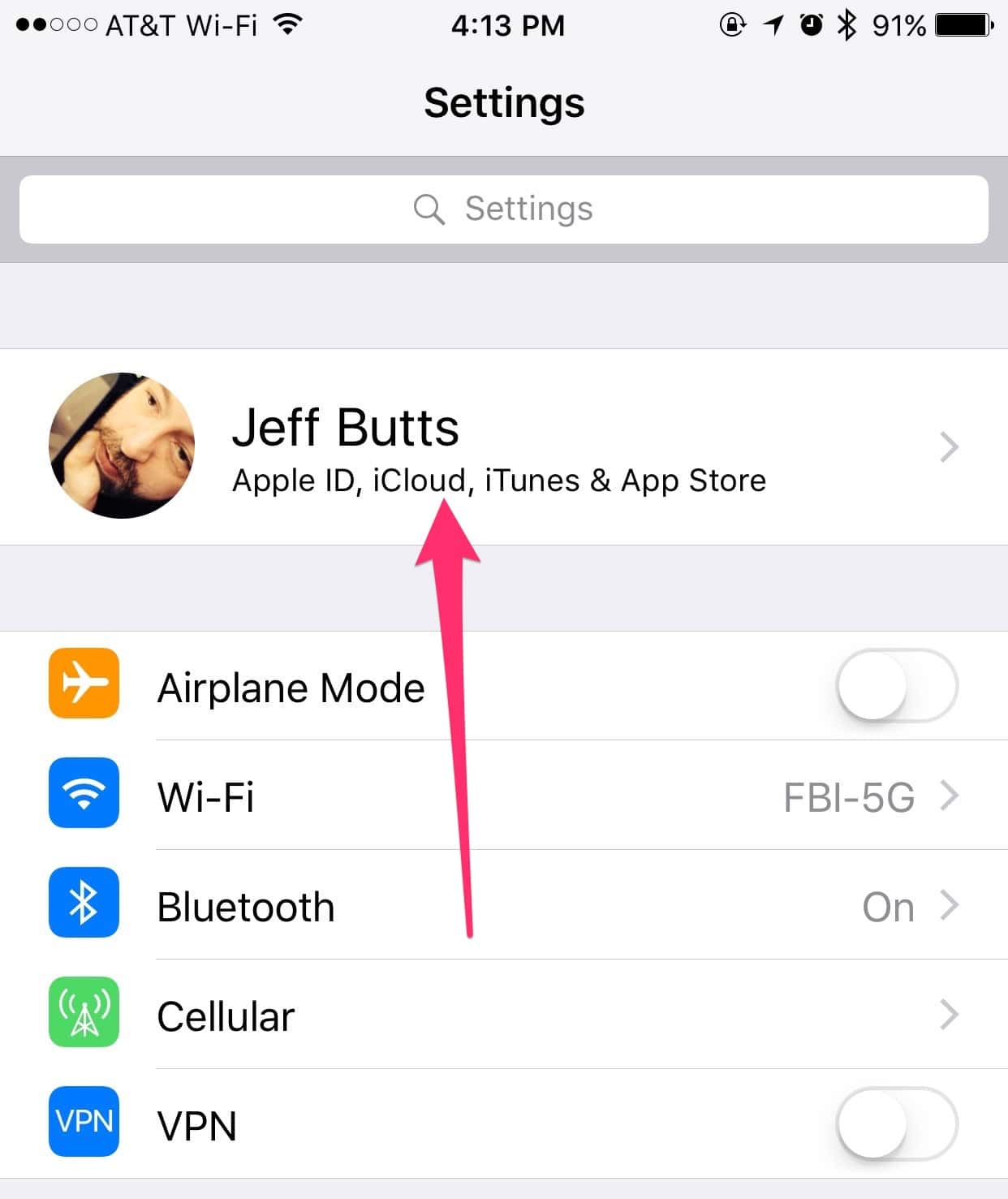
Tap your name in Settings to get started
Next, tap on iCloud to change which of the cloud-based services you use.
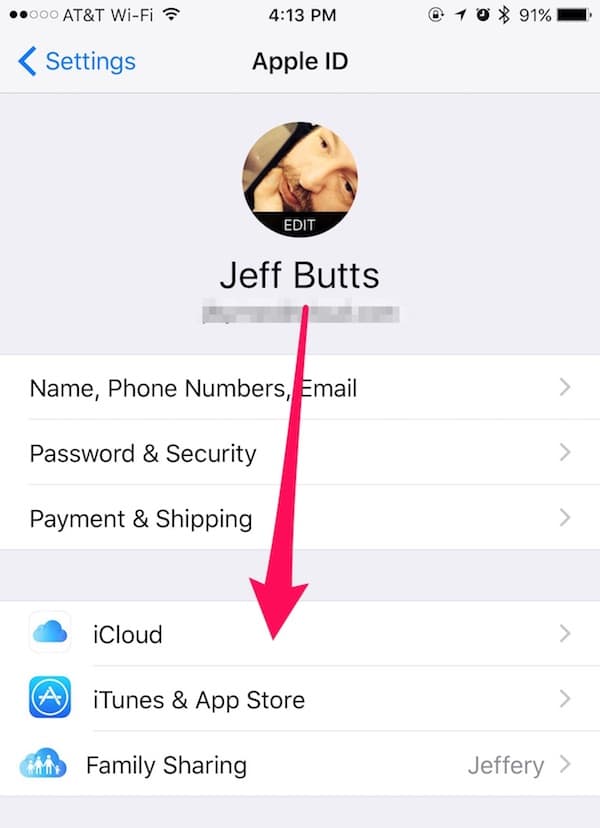
You need to configure your iCloud services, so tap on iCloud
Scroll down until you see Keychain, and tap on it.
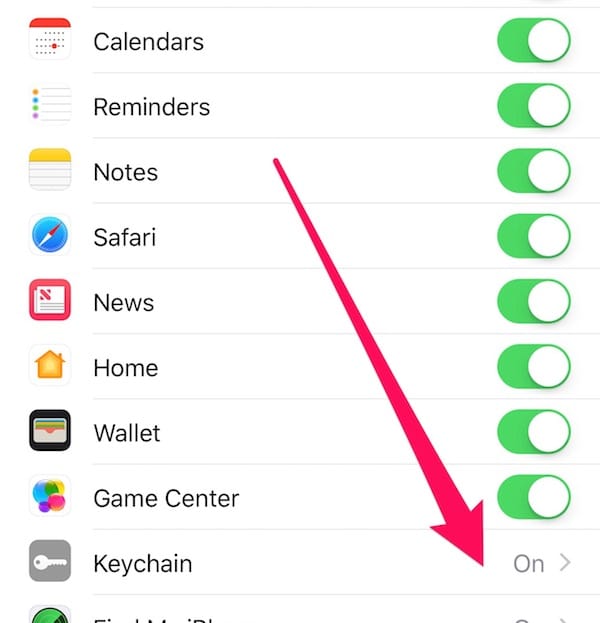
If you tap on Keychain, you’ll be able to turn the service on
Now, toggle the option on. You’ll get onscreen instructions for the next steps, like entering your password and confirming your device. Just follow those, and you’ll soon be good to go.
Turn On Autofill Options
Once iCloud Keychain is enabled, you’ll have access to all of your Safari passwords across your various devices. To make things easy when it’s time to log into sites, Safari can autofill your password. To set this up, start from the main Settings page. Scroll down and tap on Safari.
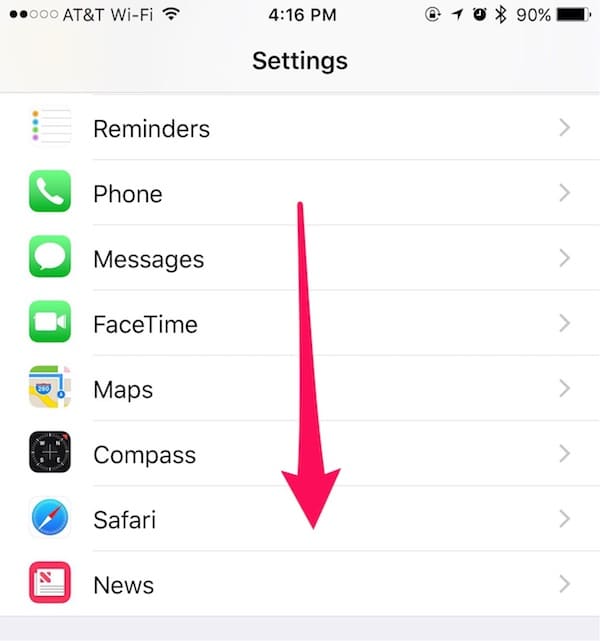
Safari for iOS can automatically fill in usernames and passwords, if you turn the feature on
Next, tap AutoFill.
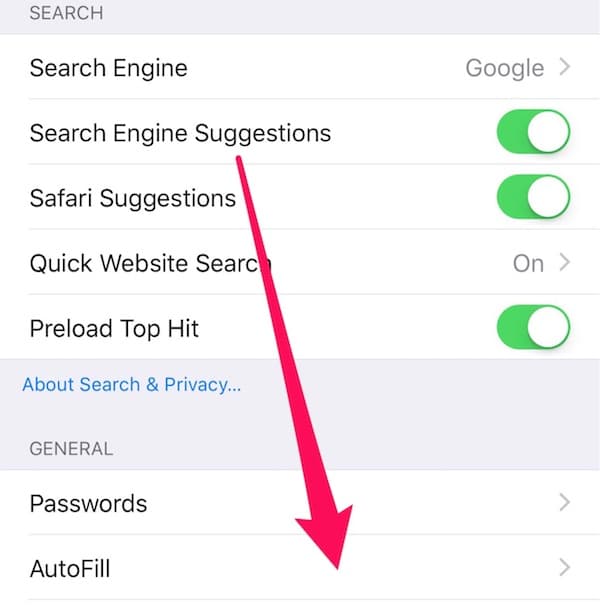
Tapping AutoFill will take you to a new screen of options
Now, you can turn on options to enable autofill for names and passwords, as well as credit cards.
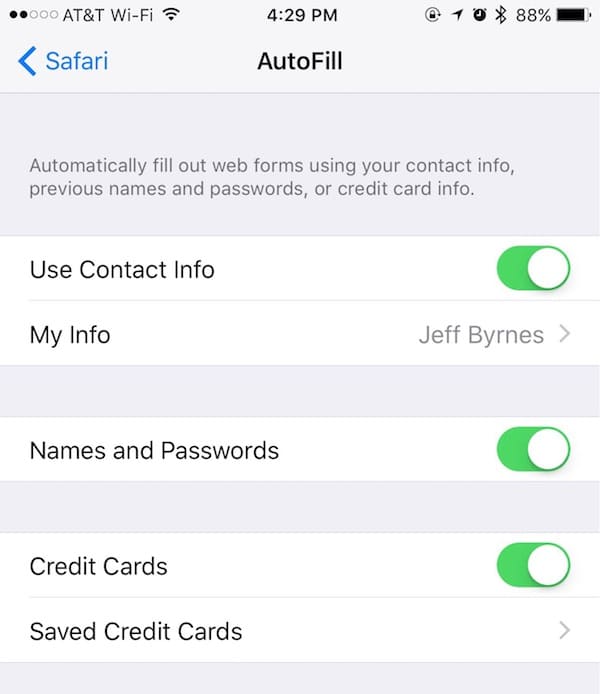
You can have Safari autofill your passwords, usernames, and credit card numbers
Finding a Password You Need
If you need to locate a specific password and view it, here’s what you can do.
- From the main Settings screen, tap on Safari.
- Scroll down until you see Passwords, and tap on it.
- You’ll get a list of all of the logins you have saved into iCloud Keychain. Scroll down until you see the one you want, and tap on it.
Now you can copy and paste the password to use where you need it.
Other Password Managers Are Available for iOS, Too
The iCloud Keychain isn’t the only password manager you can use, but it’s built into iOS. Other, more full-featured, options include LastPass and 1Password. What’s your favorite way to keep track of all of your login details?
0 Response to "iOS 10: Get Started with iCloud Keychain"
Post a Comment