macOS: How to Download Files From the Web Using Terminal
In our next Terminal tip, we’ll show you how to download files from the web. Of course it’s probably easier just to use the GUI of Safari, but using Terminal gives you additional stats like file size, remaining time, download speed, and received memory.
Download Files With Terminal
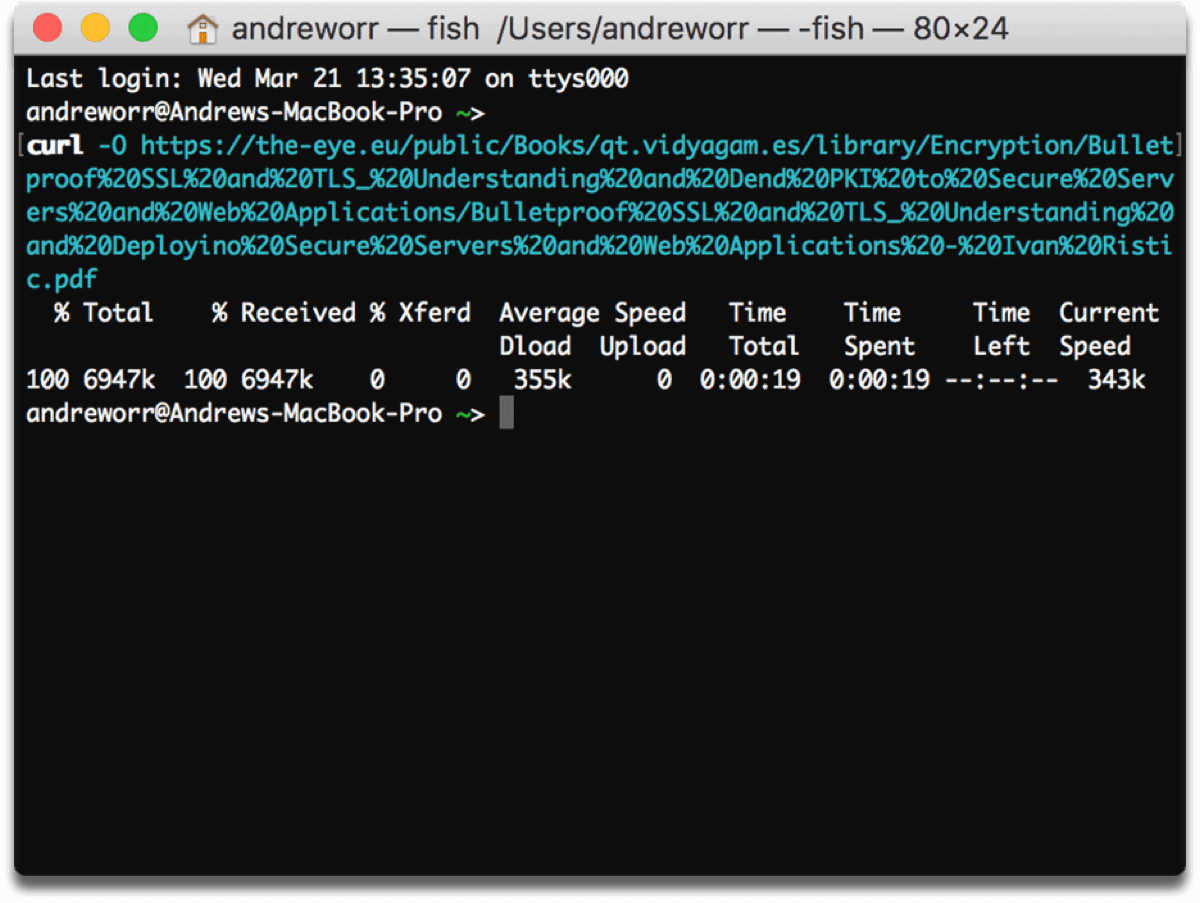
You only need one simple command to get started:
curl -O <URL>
Make sure the letter O is capitalized. After you type curl -O, just paste the URL of the file you want to download. Don’t include the “<>” either, that’s just an insertion point. Your download will start immediately.
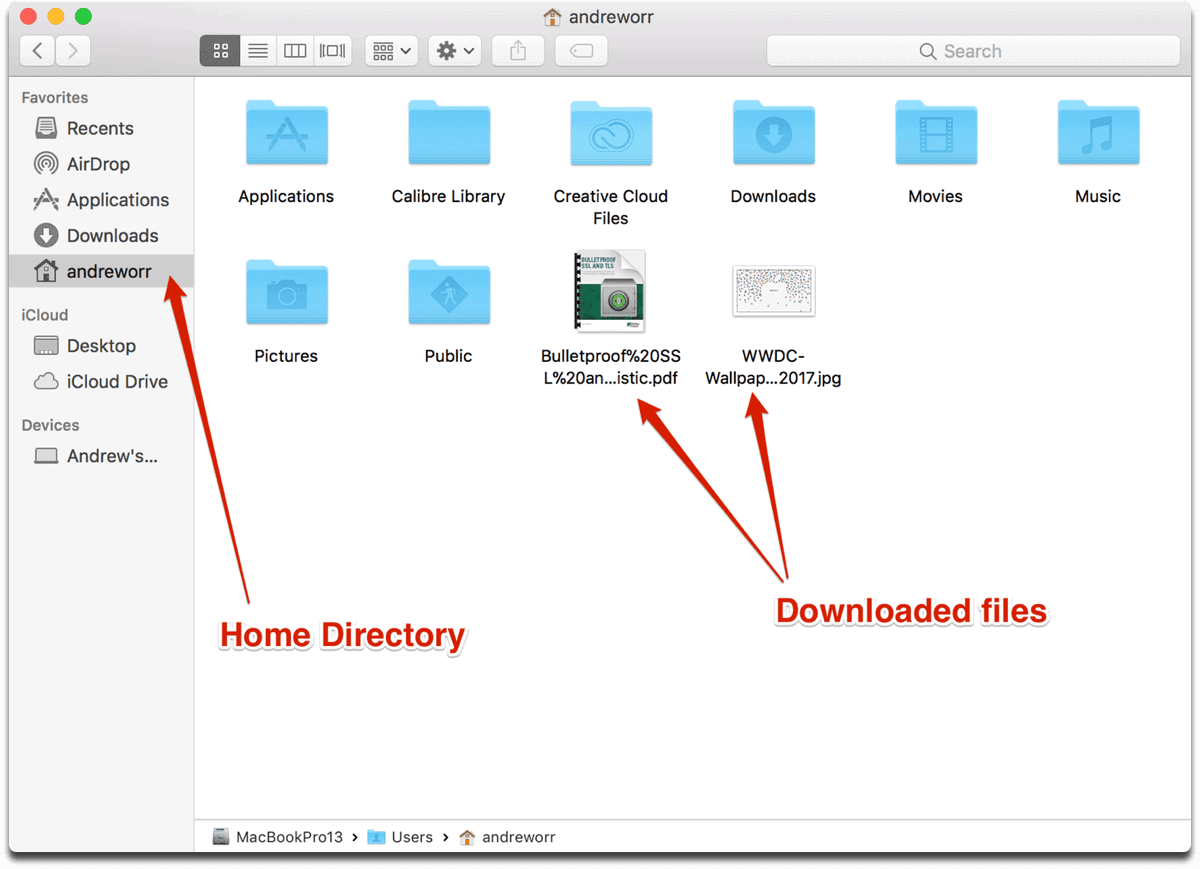
You won’t find them in the Downloads folder though. They will show up in your home directory. You can find this by opening Finder, then click on the house icon with your name next to it.
0 Response to "macOS: How to Download Files From the Web Using Terminal"
Post a Comment