macOS High Sierra: How to Stop Videos from Auto-Playing in Safari
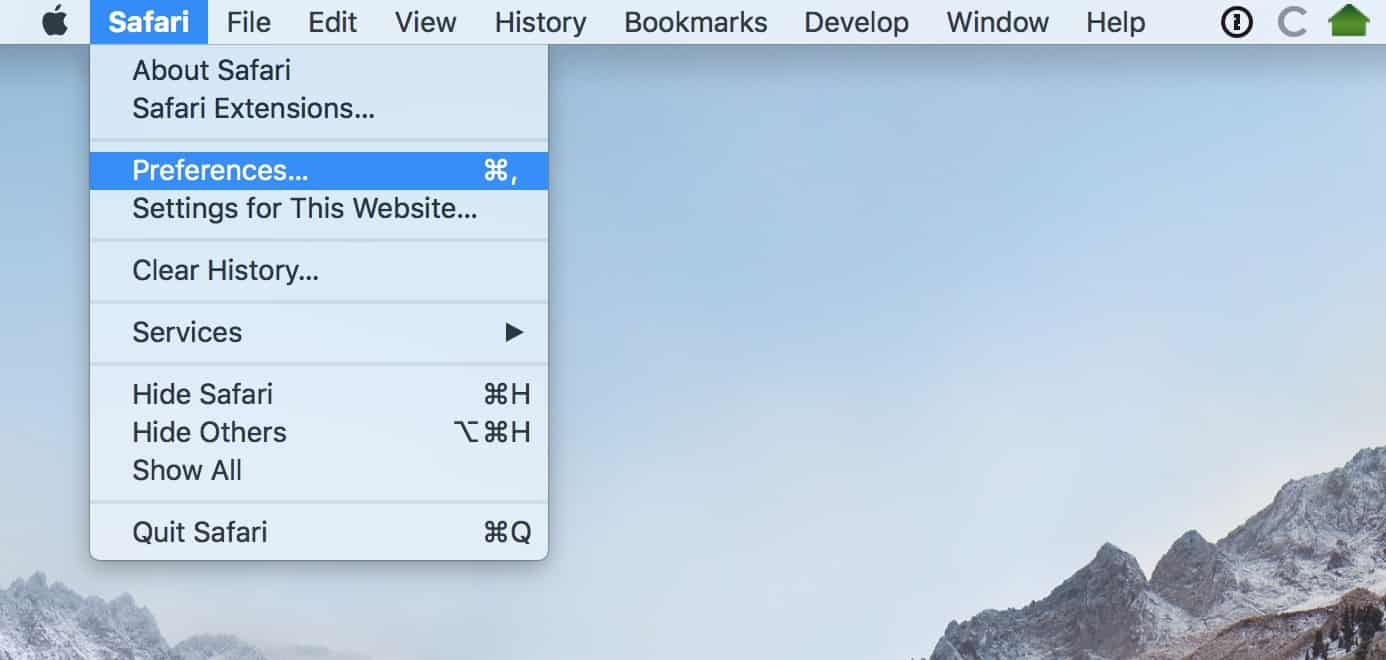
We all love website videos that start playing automatically, don’t we? Mmm-hmm. Especially the ones that blast the whole household awake at 2 a.m.? Oh, those are THE BEST. But if you’re one of those nutjobs who doesn’t like this wonderful behavior, then boy, does macOS High Sierra have a feature for you. It’s tucked away in Safari’s settings, so check it out by first opening that browser and going to Safari > Preferences.
After that, you’ll click on the “Websites” tab and then select “Auto-Play” from the sidebar, like so:
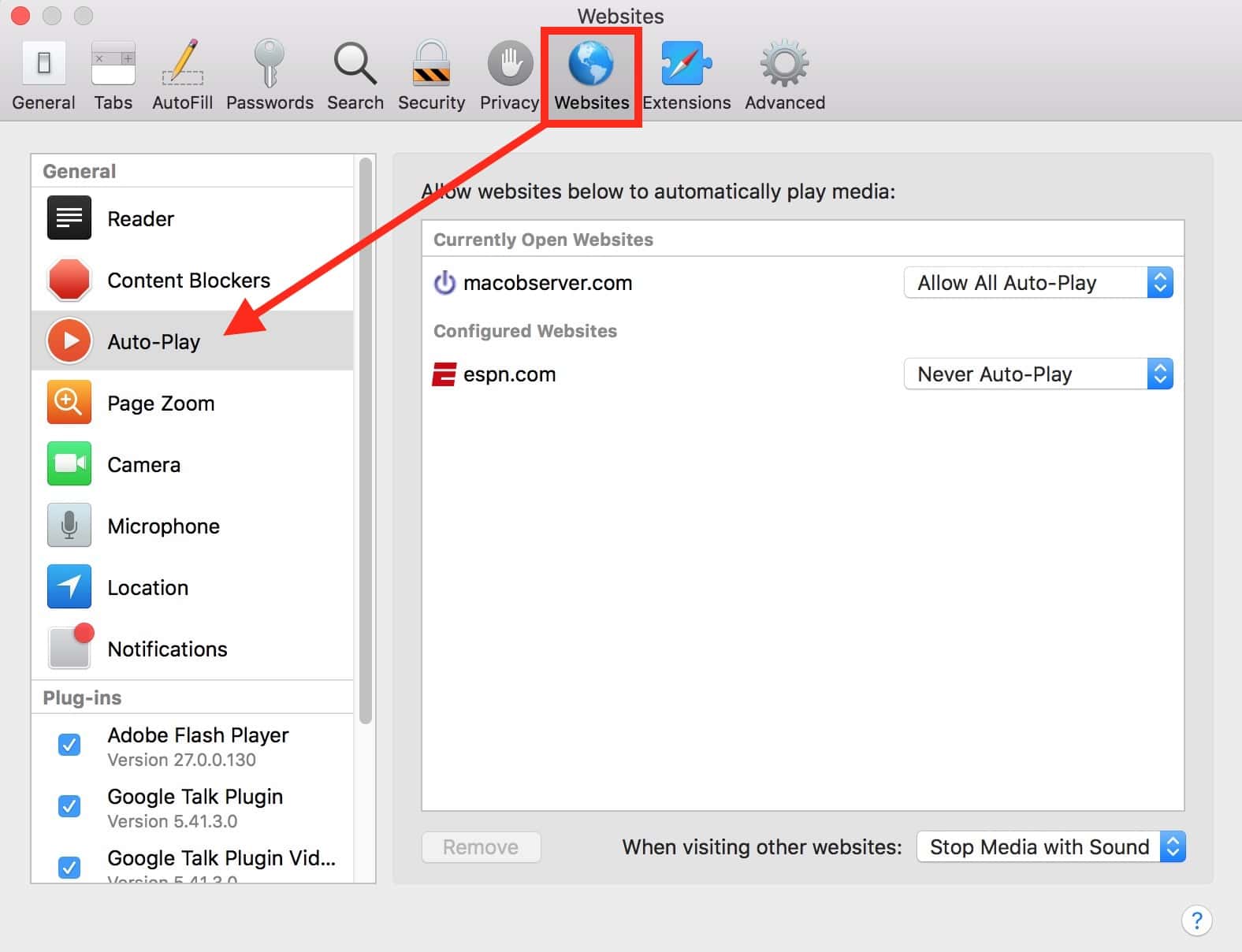
Within this list, you’ll see the websites you currently have open and ones you’ve previously configured the auto-play settings for (if any), both with drop-downs next to them. So what options do you have for each site? Well, here’s how Apple’s help document puts it:
Allow All Auto-Play: All videos on the site can autoplay.
Stop Media with Sound: Only videos that don’t have audio will autoplay.
Never Auto-Play: No videos can autoplay.
So you, dear reader, can decide how horrible—er, I mean enjoyable you find the content on a particular site and adjust the permissions accordingly.
Finally, there’s a drop-down at the bottom of that window that’ll allow you to change the global setting.
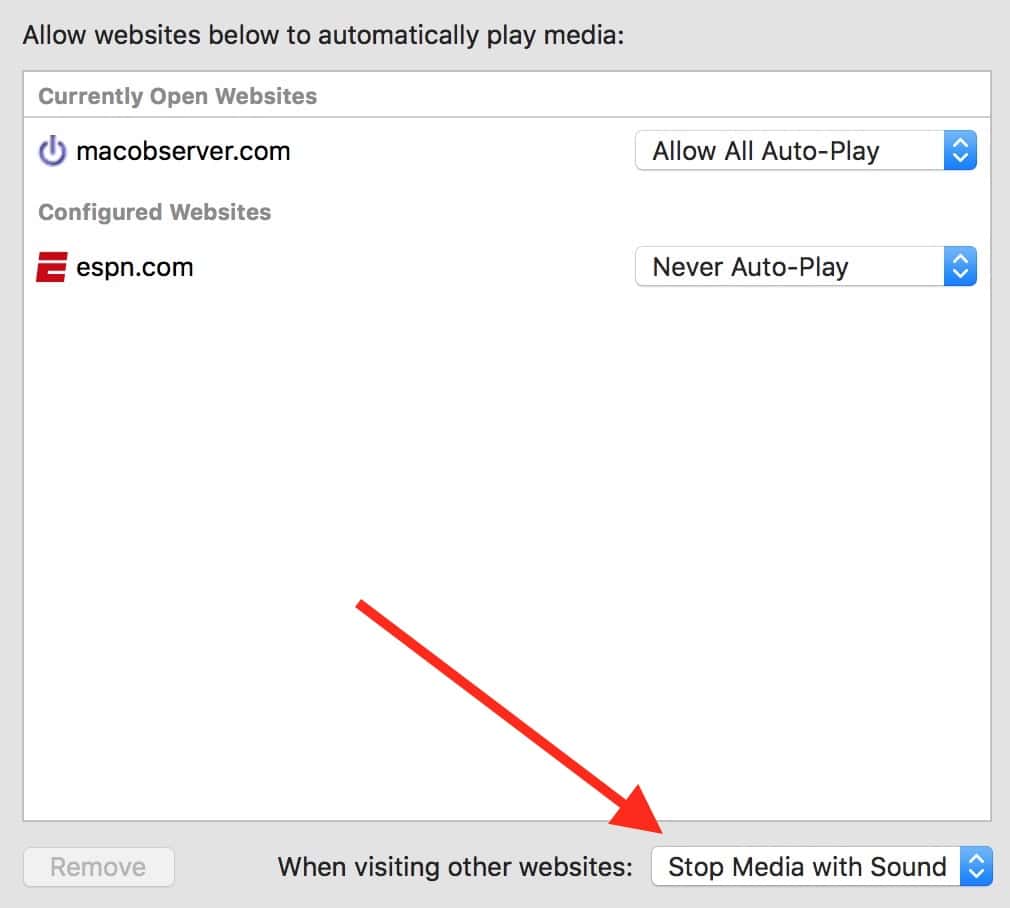
By default, Safari should stop all media with sound, but if you’d like to be a bit more heavy-handed, you could switch this to “Never Auto-Play.” Not that I would do that. Because I love to be startled out of my wits when I open a random site, oh my yes.
0 Response to "macOS High Sierra: How to Stop Videos from Auto-Playing in Safari"
Post a Comment