macOS: Using Screen Sharing Within Messages
Messages on the Mac has a built-in screen-sharing feature that is handy as heck for helping out friends and family with tech troubles, and in my experience, recent versions of this work pretty well! So now there’s no point in actually going out and visiting anyone, right? Or even leaving your house. Wait, maybe you shouldn’t be like me.
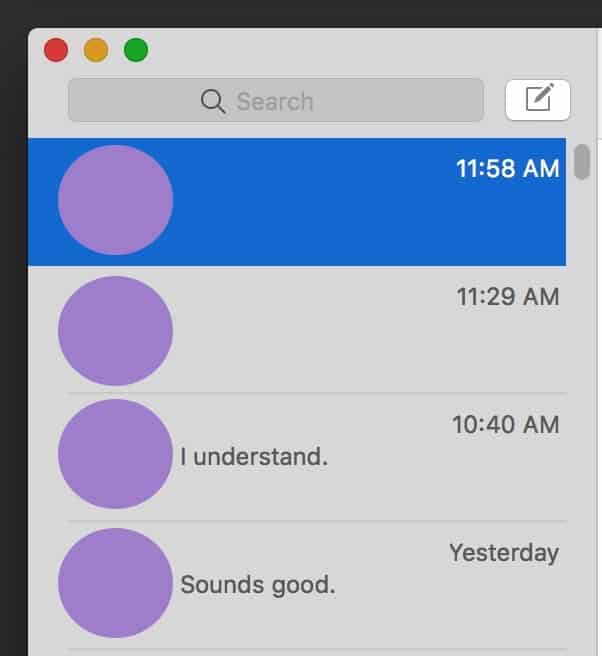
To check this out, open the Messages program on your Mac first, and then click on the conversation with the person whose screen you’d like to view from the sidebar.
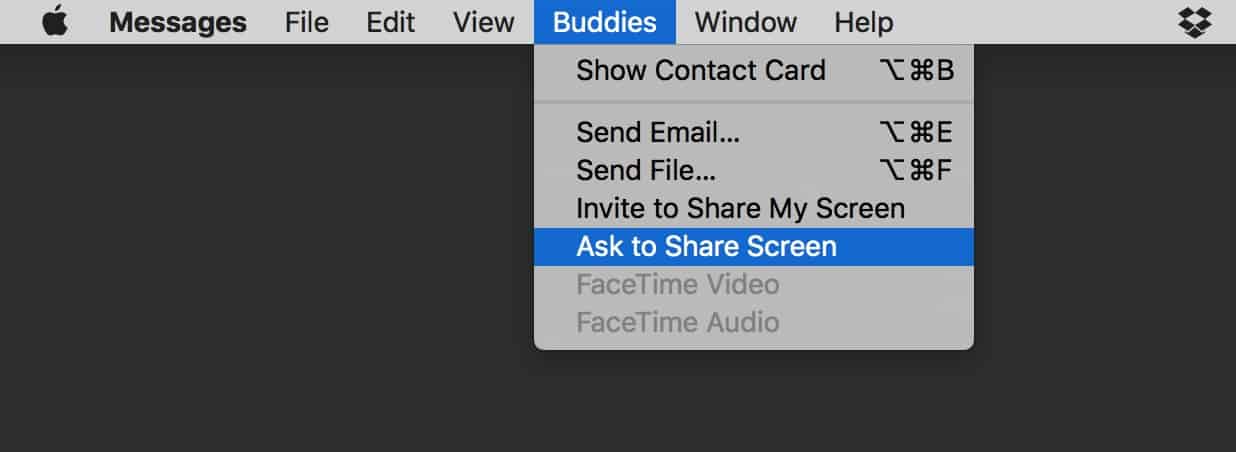
From the menus at the top, choose Buddies > Ask to Share Screen.
On the other person’s computer, a pop-up will appear asking for access…

…and when he clicks “Accept,” he’ll get some options for what he wants to allow you to do.
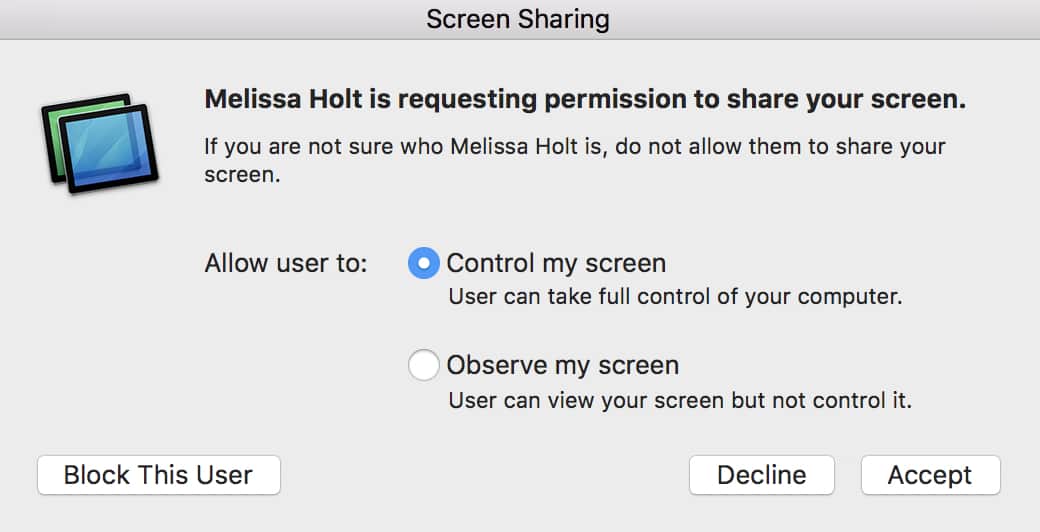
“Control my screen” is just what it sounds like; if the user grants you this access, you’ll be able to move his mouse around just as if you were sitting in front of his Mac. “Observe my screen” could be useful too, though, if he just wanted to show you something without granting you full control. In any case, once he makes his choice and clicks “Accept,” you should see your friend’s screen appear within a window on yours.

I gotta say that even though I’ve been doing tech support for a long time, that’s still weird to me. HIS MAC IS ON MY MAC SOMEHOW.
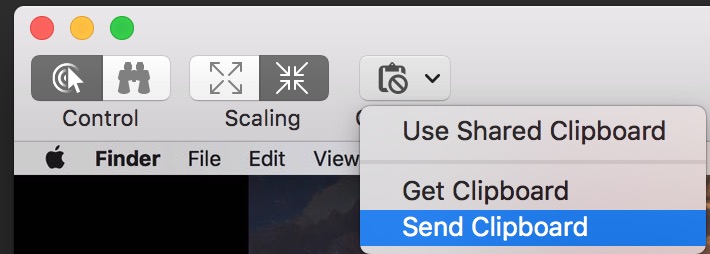
Anyway, as long as your friend gave you screen-controlling privileges, you can then click around, fix stuff, and help him as much as your little heart desires. Pay attention as well to the toolbar icons that the Screen Sharing functionality gives you:

Those first two buttons on the left will toggle between controlling mode and observing mode (and it’ll ask the other user to confirm the change if he didn’t originally give you controlling privileges). The middle two buttons will change the scaling view of the display, so if the other screen looks all weird and stretched, for example, you can try switching this mode. And finally, the “Clipboard” button will allow you to sync your clipboard with the remote computer or send the clipboard contents between the two Macs.
Kinda creepy.
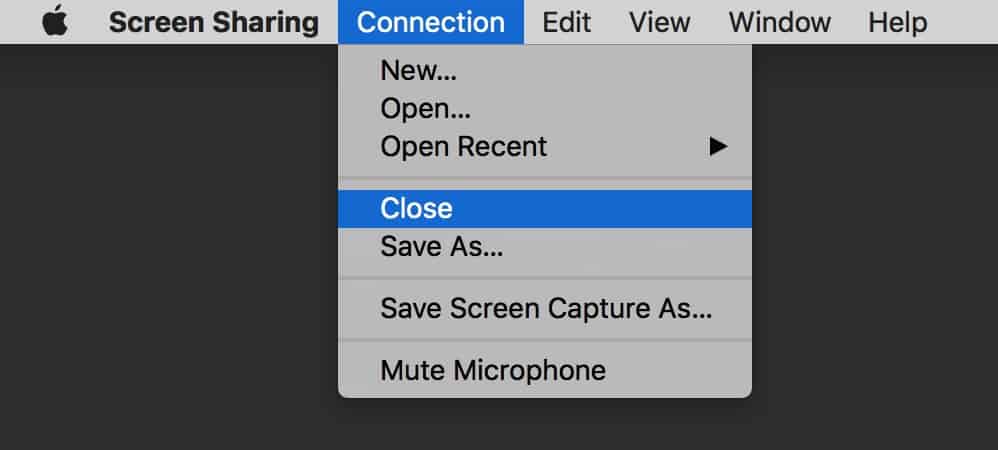
So after you’ve helped your friend as much as you can (or, at least, as much as you’re willing to!), you can disconnect from his machine by just closing the Screen Sharing window or by picking Connection > Close from the menus at the top.
Your friend can also break the link at any time using a menu bar icon that’ll appear whenever a remote user is connected (he’d pick “End Screen Sharing”).
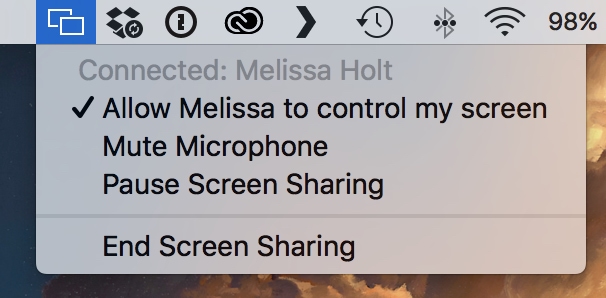
Finally, one more thing: As you can see in the screenshot just above, “Mute Microphone” is an option on the receiving Mac, and the controlling/observing end has that too under the menus:
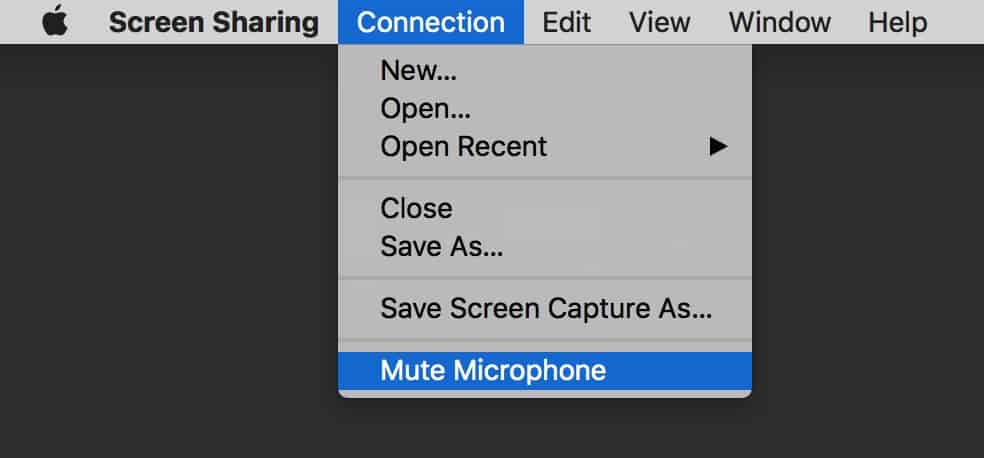
Because, yeah, it’s kind of important to know that anything you say will be heard by the person who’s sitting in front of the remote computer if you don’t mute your microphone. Tech support can be frustrating! Believe me, I understand. Just don’t let the frustration make you curse out loud over a remote connection with your great-grandma, OK?
0 Response to "macOS: Using Screen Sharing Within Messages"
Post a Comment