macOS: Archiving Old Contacts
I’ve got so many contacts at this point. Too many. All right, 500 or so isn’t actually that bad, considering I’ve seen some folks that have thousands. I always wonder how those people even exist in the world. Isn’t it stressful having to keep all those names straight? Do you have to send birthday cards out every day? I dunno.
Anyway, I mentioned last week that you can clean up your contacts by linking them together, but if you’d prefer, you could also archive some information out of the Contacts program completely. Of course deleting people from your database is always an option, but by archiving their cards first, you can retrieve their info if you get back in touch again without cluttering your list in the meantime.
There are a couple of different ways you could go about this. First, if what you need is to archive a bunch of people at once, start by choosing File > New Group from the menus at the top.
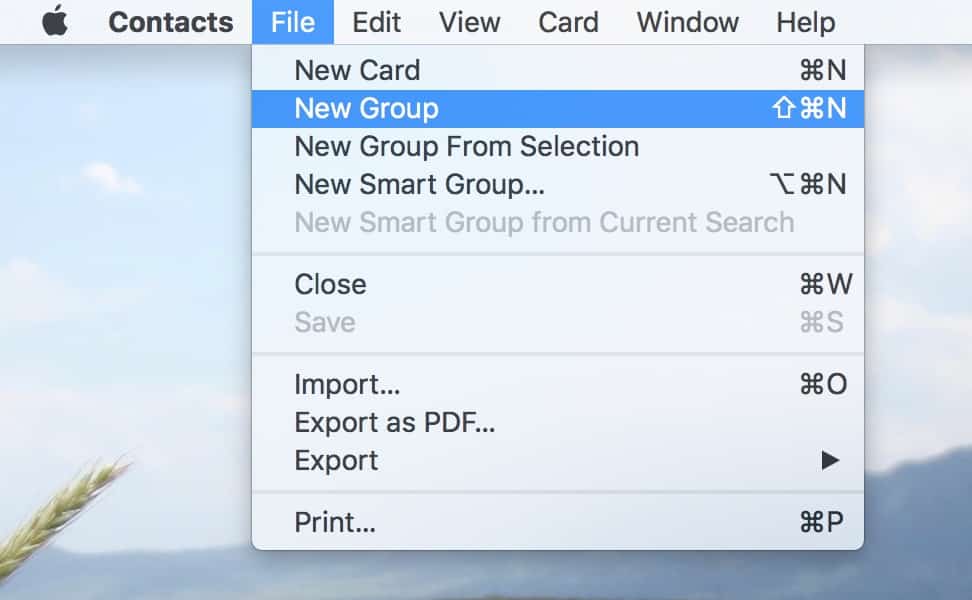
Once your new group appears in the sidebar, give it a name (it’ll be waiting for you to type it in), and then start dragging folks from the “All Contacts” group at the top into your new creation.
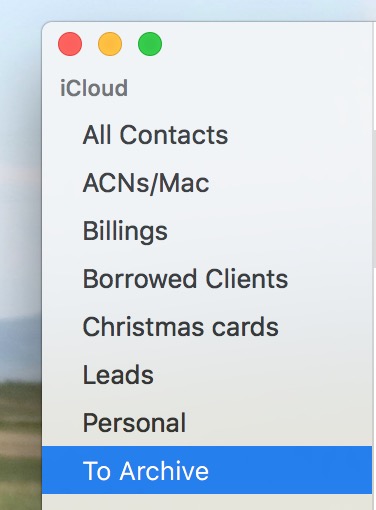
When everyone you’d like to archive is in there, click on your new group from the sidebar, and under the menus, choose File > Export > Export vCard.
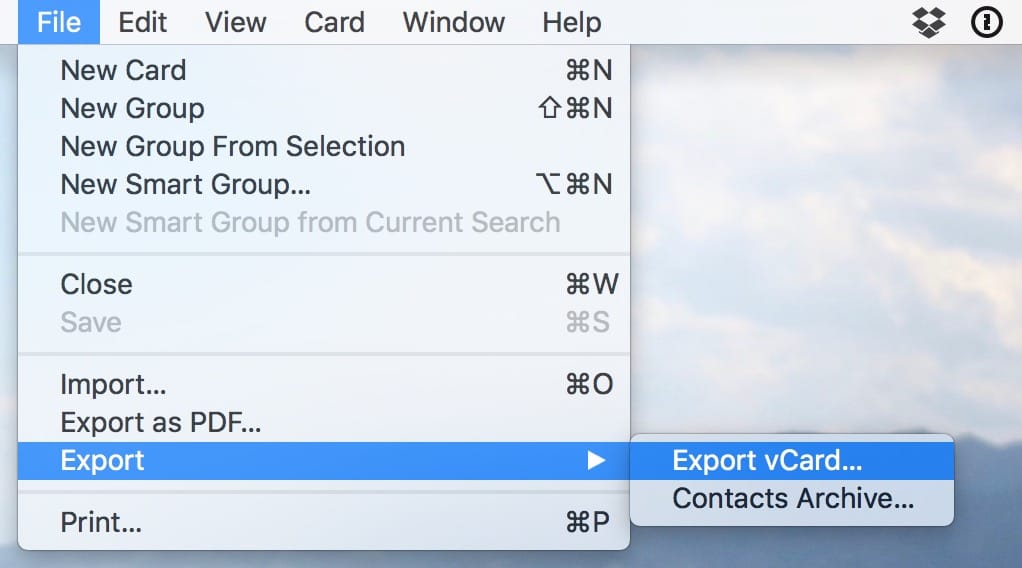
I know, right? You’d think that for the purposes of archiving, you’d pick “Contacts Archive”! But that choice will instead export your entire list into a backup file, which isn’t what we want here.
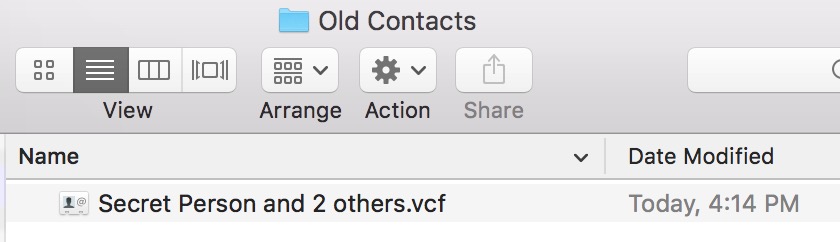
So once you’ve selected File > Export > Export vCard, your Mac will ask you where you’d like to save it, and you’re done! This’ll create a .vcf file in your chosen location, and if at any point you’d like to bring back those people, just double-click on the file to reimport their cards.
And of course, you’ll want to go back to the group you created and delete the cards for the folks you just archived. To do that, click on any person within the group and press Command-A (Edit > Select All).
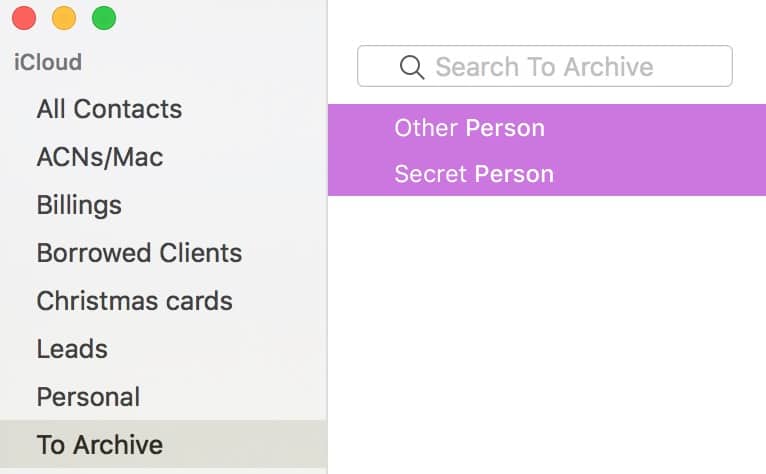
Then tap the Delete key on your keyboard.
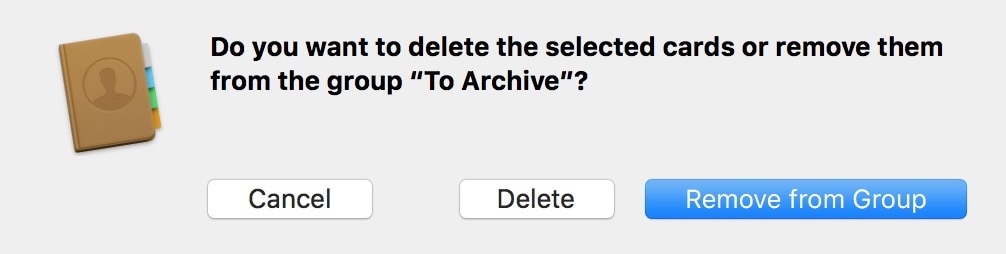
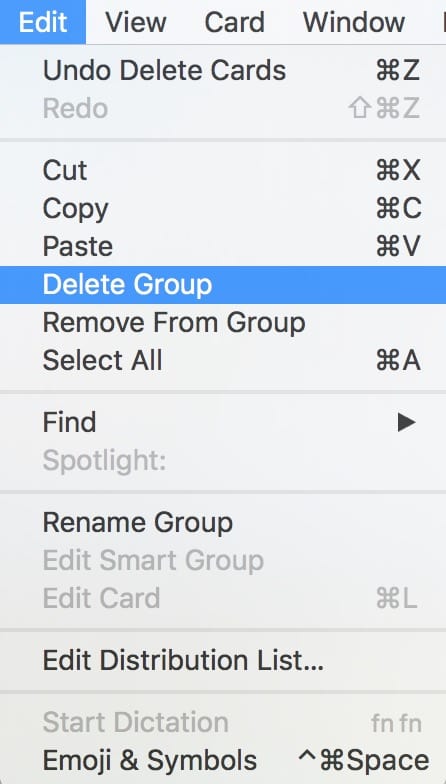
As you can see, Contacts will ask you what you’d like to do. To make those cards really, truly gone out of your program, be sure to pick “Delete” from that box. Then you can select the group you made and delete it too with the Edit menu.
There is one other way you could go about this, though. Note from above that when I exported the cards like this, it made one big ol’ file for everyone, which isn’t ideal if you think you may want to reimport some folks you’ve archived but not others. So instead, you could click on each card in turn and choose File > Export > Export vCard and save it out. That’ll make a single file per person, which is a lot easier to work with for reimporting.

As with the group .vcf file, you can reimport a card by just double-clicking on it. So the exporting part is a little bit more time consuming, sure, but the benefit is that you can bring cards back one at a time if you need to.
Finally, one last quick trick: You can also export cards by dragging and dropping them out of Contacts and onto your Desktop or into a Finder window, say. If you drag one, it’ll create that single-person .vcf file; drag multiple selected cards, and you’ll make a group one just like we did the first time around above.
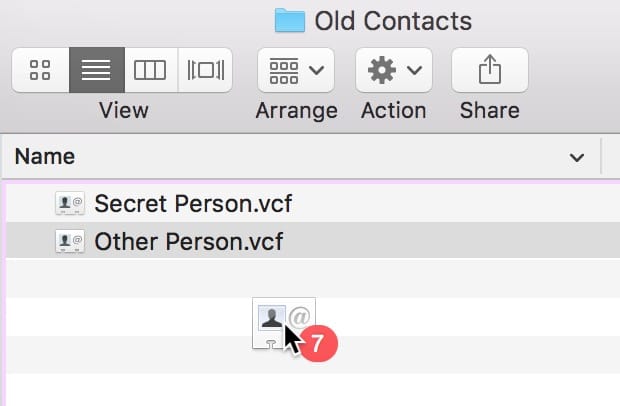
This picture of me dragging seven cards wins for most illuminating screenshot of the week.
Much faster! However you do this, just remember to go back and delete your exported cards out of Contacts if cleaning your list was your goal. And for the purposes of this tip, I decided to go through and see how many cards of my 500 I could remove. Sadly, the answer was zero. I may not be a hoarder of things, but I’m a hoarder of people, apparently. Or at least their email addresses and phone numbers.
0 Response to "macOS: Archiving Old Contacts"
Post a Comment