Comprehensive Guide to Magic Mouse Mac Gestures
Comprehensive Guide to Magic Mouse Mac Gestures
In a recent article, I showed you how you can use gestures with your Force Touch-capable trackpad. That’s fine for people with newer MacBooks or Apple’s Magic Trackpad 2. However, I certainly don’t want to forget to show some loving to the most current Magic Mouse, since it has its own gestures. Here is an unabridged look at what gestures you can use with the Magic Mouse, as highlighted by Apple and (I hope) improved upon by yours truly. This guide to Magic Mouse Mac gestures assumes you are running macOS Sierra with the most current model of the accessory.
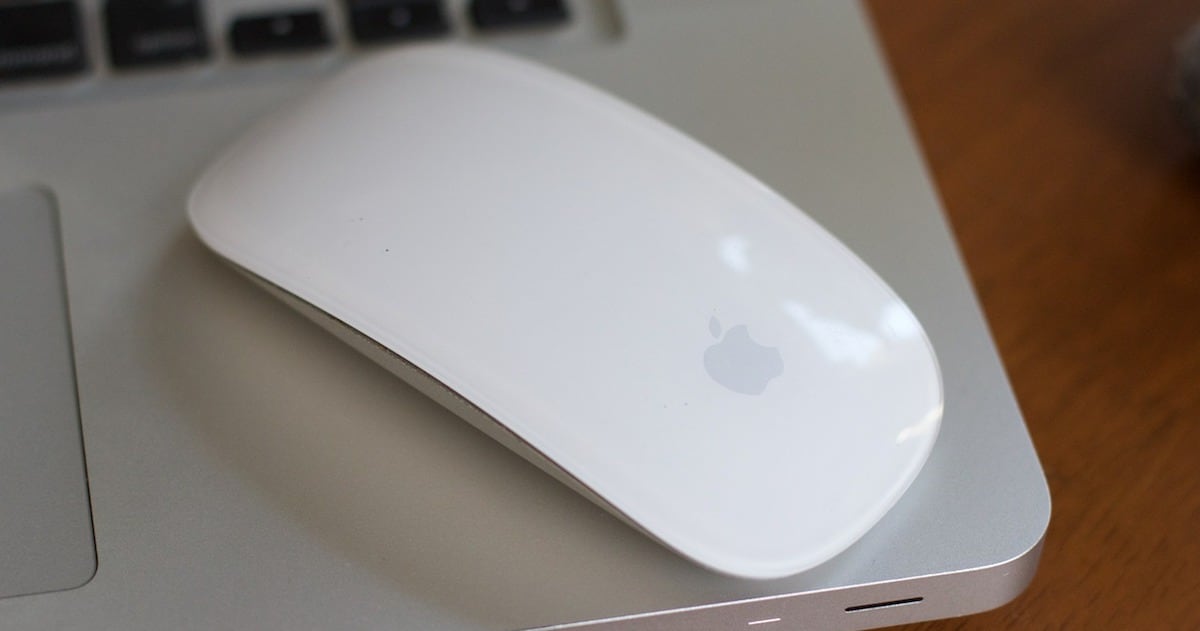
Your Magic Mouse 2 might be more powerful than you think (Image Credit: AlexKingCreative)
Getting Started with Magic Mouse Mac Gestures
The first thing you need to do is ensure the gestures are enabled. You do so from System Preferences -> Mouse. You’ll see two tabs, one for point and click gestures, and another for additional capabilities. Let’s look at the point and click gestures first.
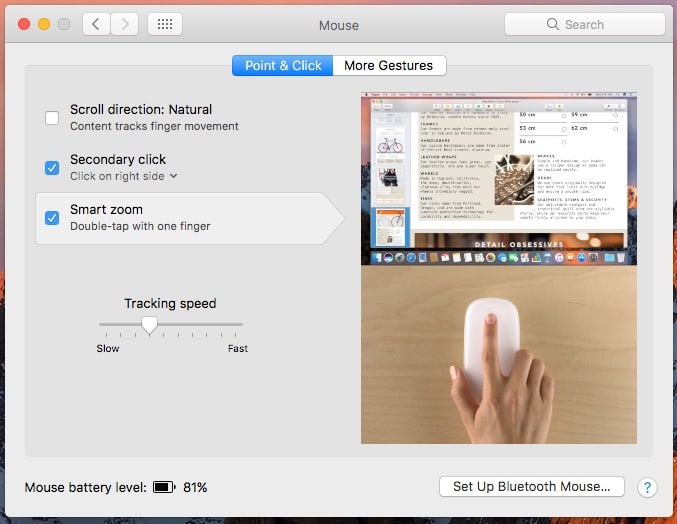
To get started with gestures on your Magic Mouse, visit System Preferences and click on Mouse
First, my old nemesis — Scroll direction: Natural. This is usually enabled by default, so I quickly turn it off. Leave it on if you prefer it. There’s also an option for Secondary click, which allows you to click or tap on the right side of Magic Mouse 2 in order to perform the Windows equivalent of a right-click.
A truly useful Magic Mouse Mac gesture, smart zoom allows you to quickly and easily focus in on a web page or PDF. Just double-tap with one finger to utilize this gesture.
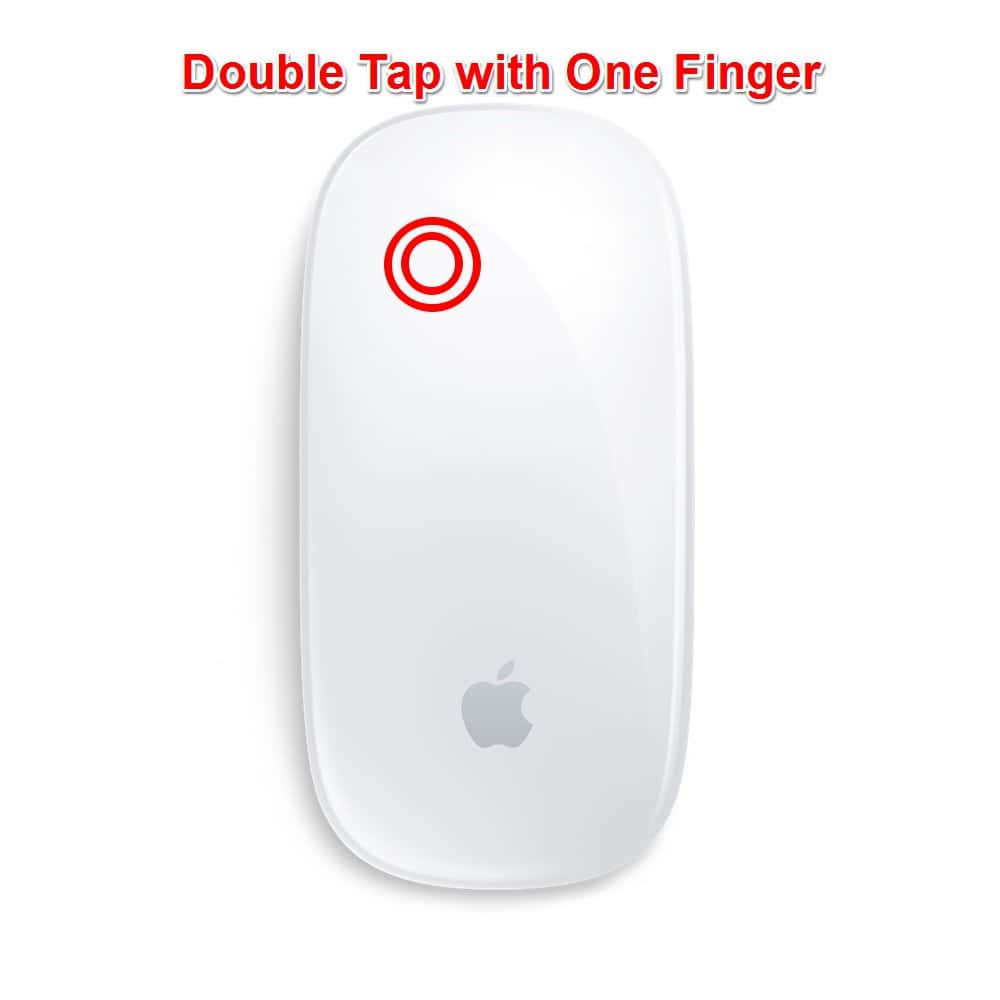
If you double-tap with one finger, you’ll quickly zoom in and out on a PDF or web page
Even More Gestures
That’s not all the Magic Mouse can do, though. If you click on More Gestures, you’ll see other possibilities to improve your productivity and efficiency when using your Mac. First, you’ll see the ability to swipe between pages in your web browser. With this Magic Mouse Mac gesture, you can just scroll right or left with one finger in order to go to the previous or next web page in your history.
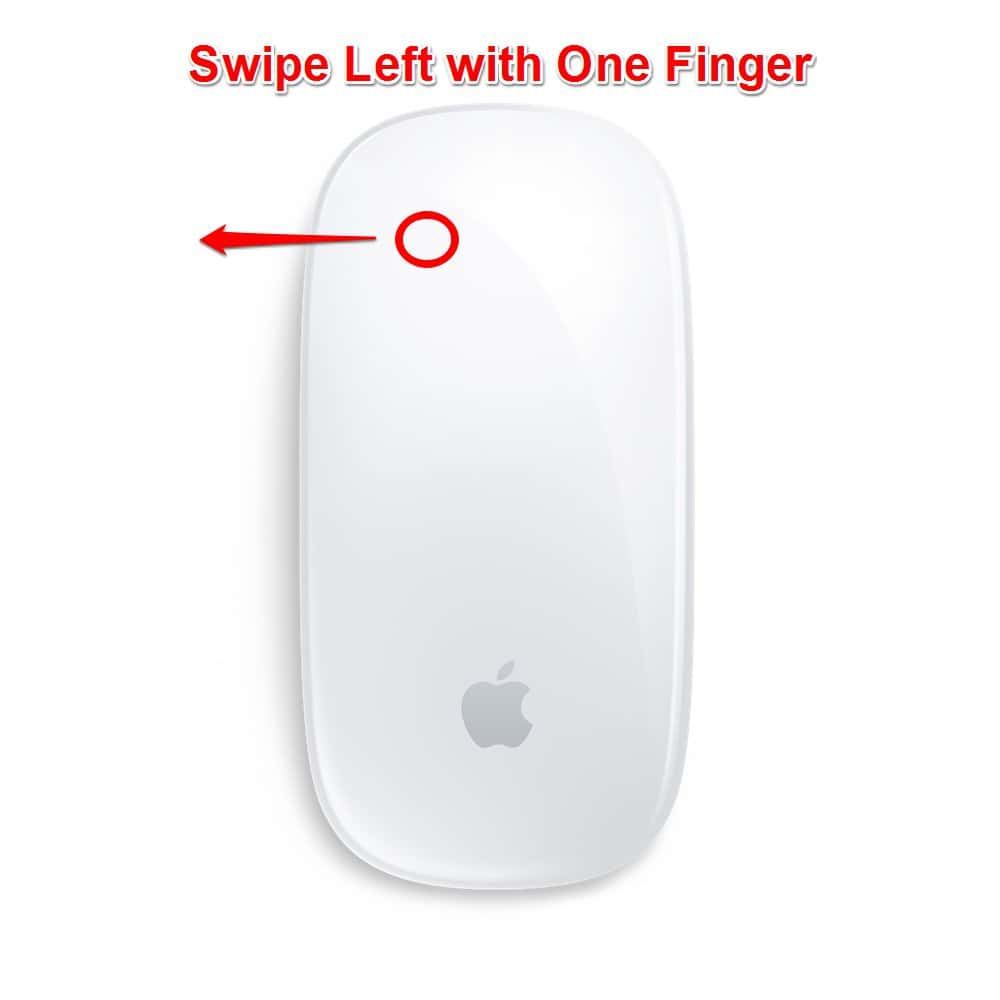
Swipe left with one finger to go to the previous web page
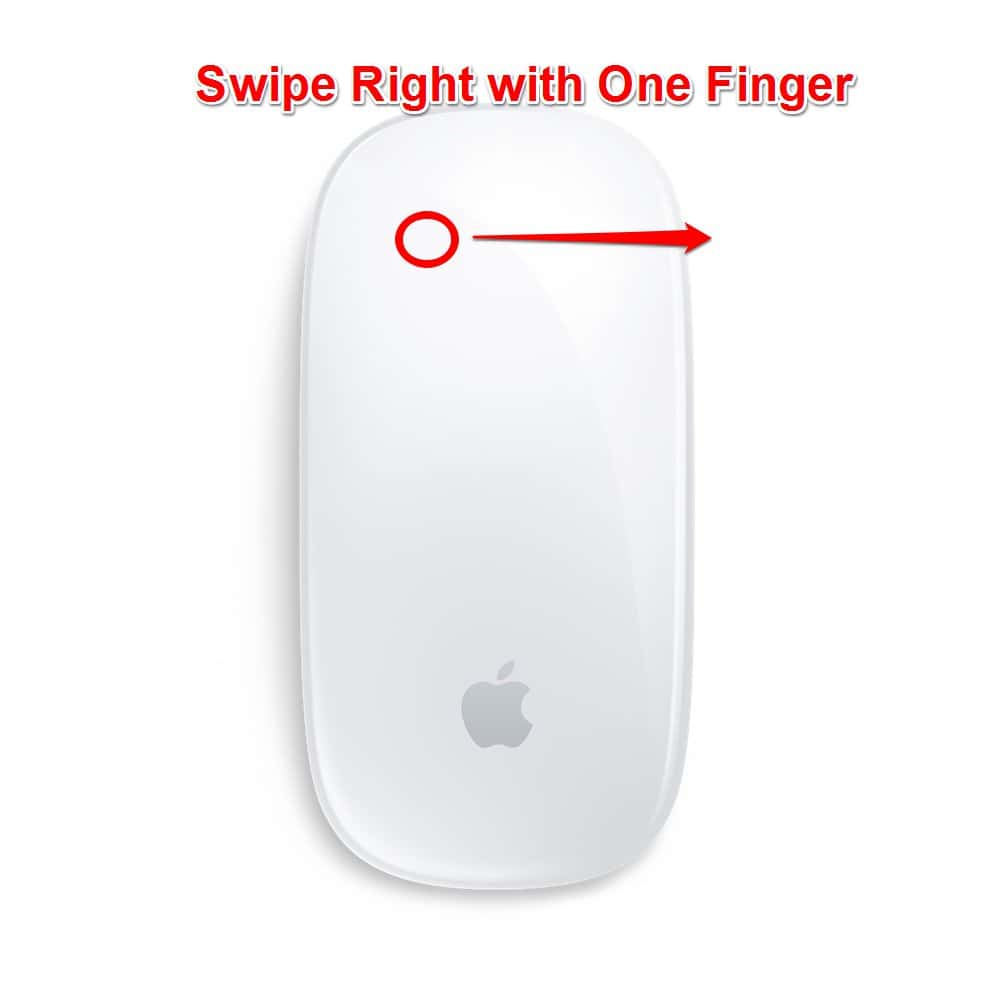
Swipe right with on finger to go to the next web page
Up next: moving through your full-screen apps with Magic Mouse Mac gestures
Next, we have the gesture to swipe between full-screen apps. If you swipe right or left with two fingers on Magic Mouse 2, your full-screen apps will cycle forward and backward.
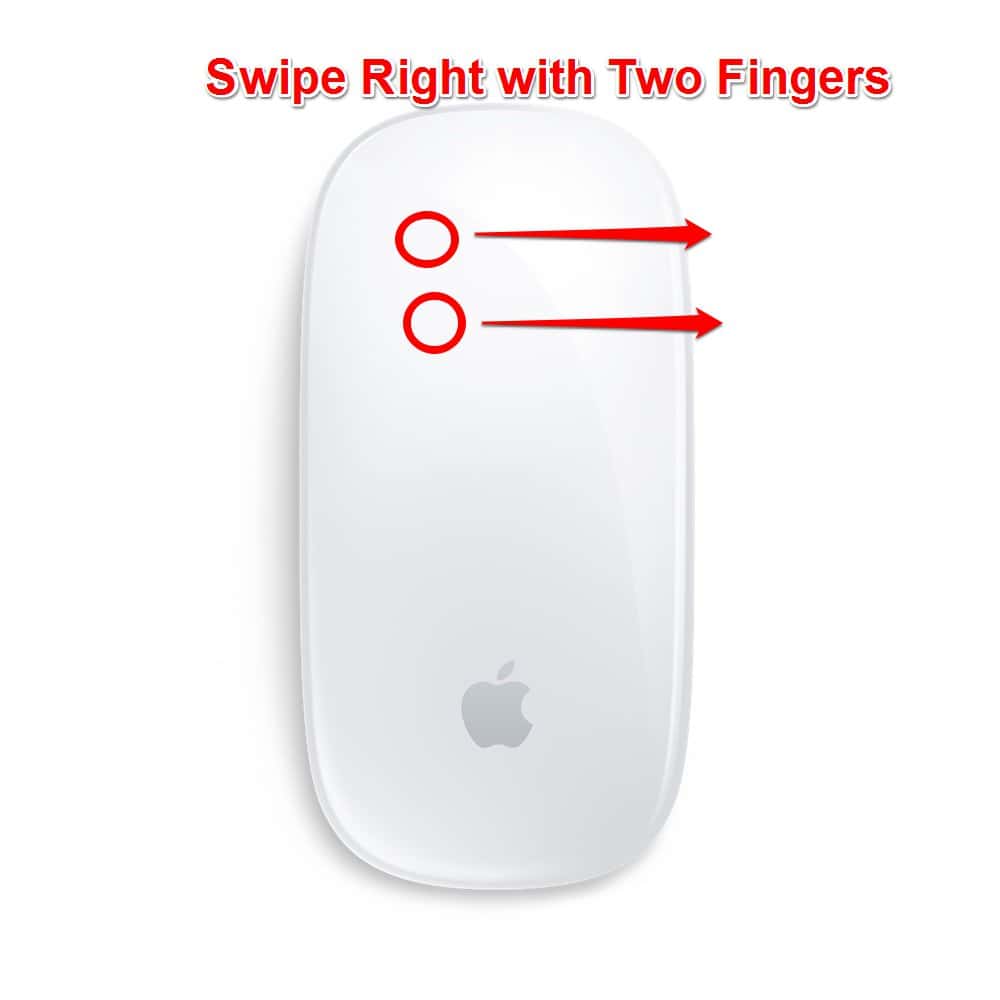
To cycle forward through your full-screen apps, swipe right with two fingers
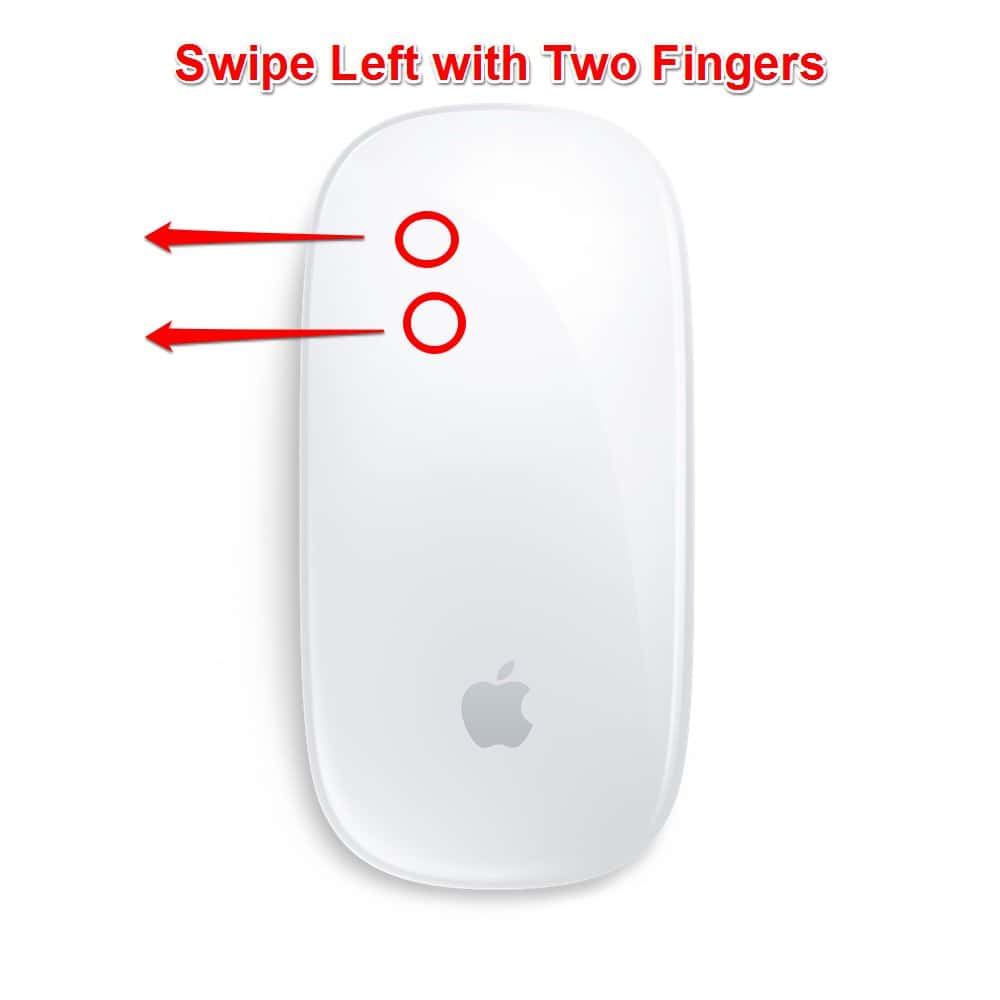
To move backward through your full-screen apps, swipe left with two fingers
Finally, Apple provides us with a quick way to access Mission Control. If you double-tap your Magic Mouse 2 with two fingers, the Mission Control app will launch, allowing you get a bird’s-eye view of all of your open windows, full-screen apps, Split View spaces, and desktop spaces.
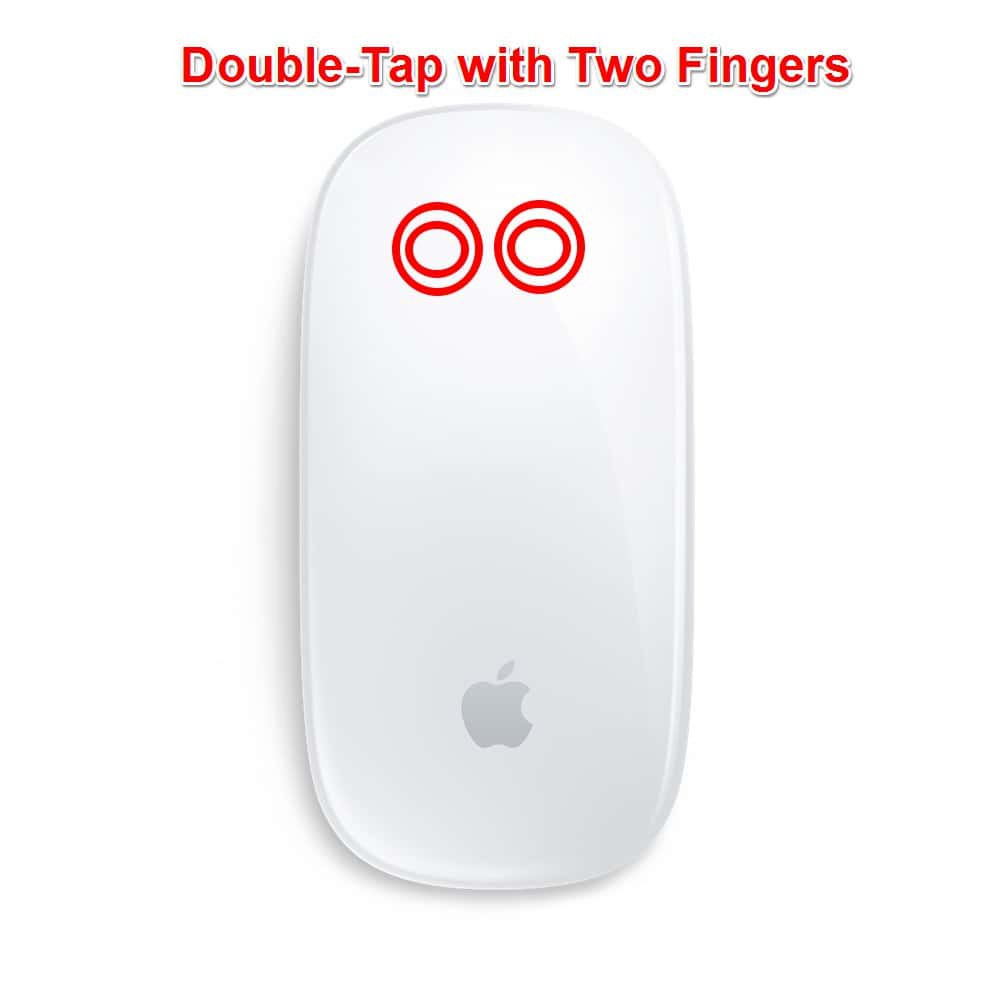
To activate Mission Control, double-tap your Magic Mouse with two fingers
That’s All, Folks
Apple doesn’t provide as many Magic Mouse Mac gestures as it does for trackpads, but that’s pretty understandable. It’s a smaller device, and the trackpads allow for more of your hand on the device. These gestures allow for quite a bit more productivity and efficiency, though, which is always a good thing.
0 Response to "Comprehensive Guide to Magic Mouse Mac Gestures"
Post a Comment