macOS: How to Change the Default Email Client
Mail.app, the email client that is bundled with macOS, is surprisingly robust. Still, it does have some limitations, leading many to switch to third-party email clients. The trouble is that just installing your favorite mail program doesn’t quite get rid of macOS Mail completely. If you click on an email link, the default behavior will be to open that link in macOS Mail. Luckily, you can easily change the default email client in macOS. Let me show you how.

Changing default email clients on macOS is easy, if you know where to look (Image Credit: gerald)
The Default Email Client Setting Isn’t Where You Might Think
If you want to change your default web browser, you just go to System Preferences > General. You’d think the default email client setting would be there, too, but it isn’t. Instead, you need to launch Mail (maybe for one last time), then click on Mail in the top left corner of your menu bar. From there, click on Preferences.
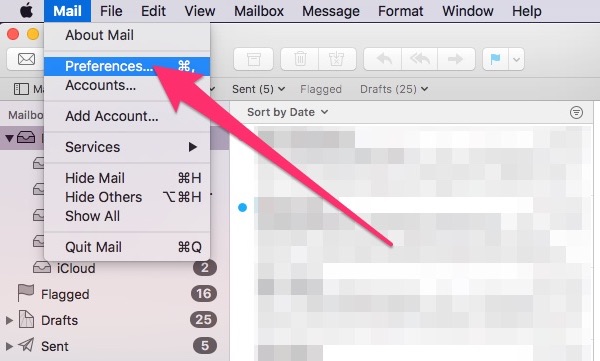
Changing your default email client begins in the Mail app’s Preferences
The preferences pane for Mail will appear. Make sure you’re on the General tab, and click the dropdown menu next to Default email reader.
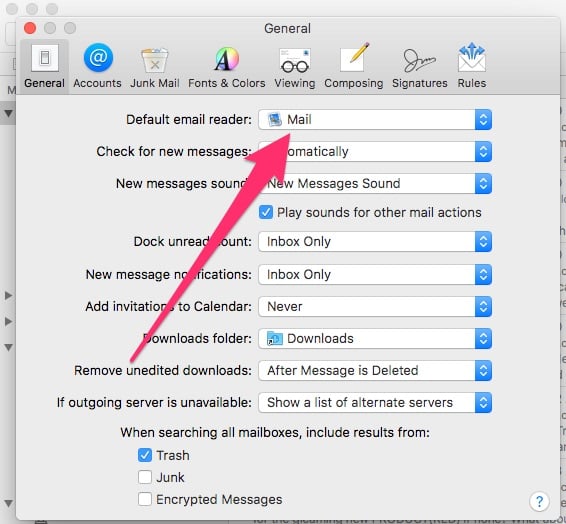
Select the Default email reader option
Choosing Your Default Email Client in macOS
A list of your installed email clients will appear. If the one you prefer is listed, click on its name in the dropdown menu, and you’ll be done.
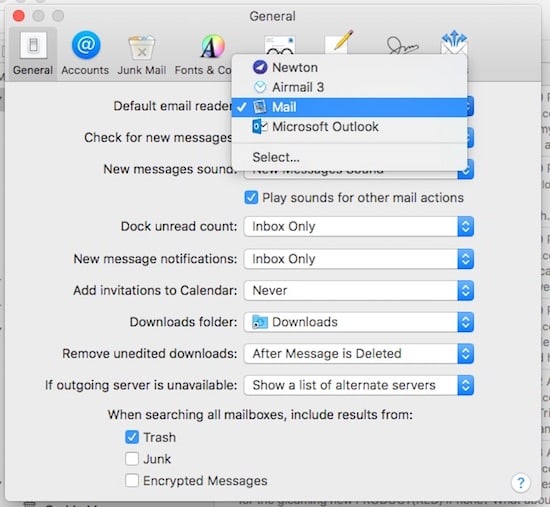
A list of installed email readers
If you don’t see the app you want, don’t fret just yet. Click on Select in the dropdown menu, and a Finder window will open up within your Applications folder. From there, you can scroll through your installed apps until you find the right software.
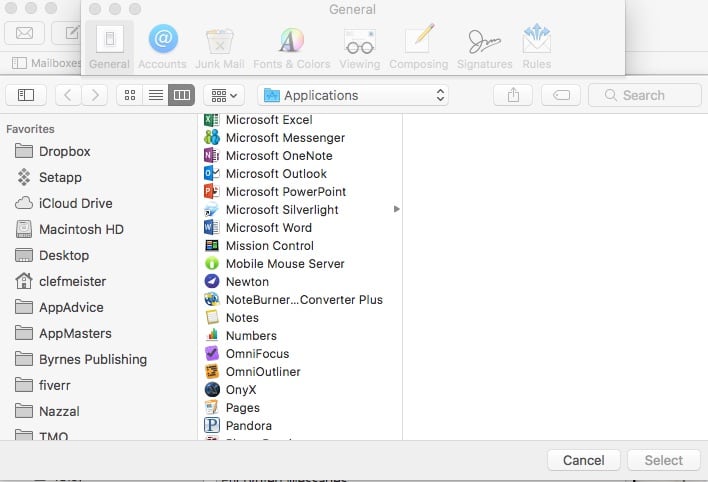
If the app you want as your default email client wasn’t in the list, you’ll have to go to the Finder
Finishing Up
Once you find your preferred email app, you should see it listed as your default email reader. You can close the preferences window, and then quit Mail.
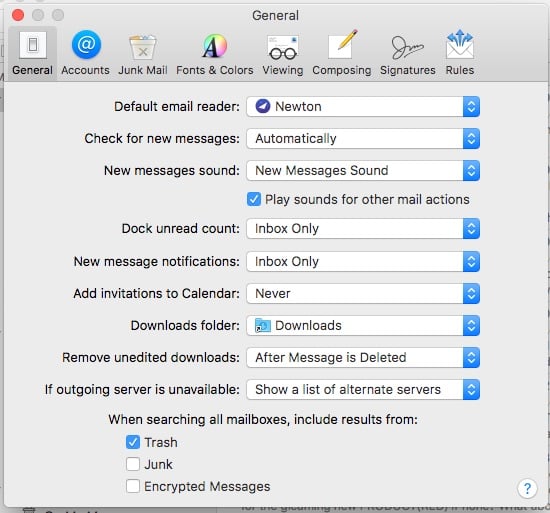
The finished product
It’s an easy process, once you know where to look. What’s your email client of choice? Let us know in the comments.
0 Response to "macOS: How to Change the Default Email Client"
Post a Comment